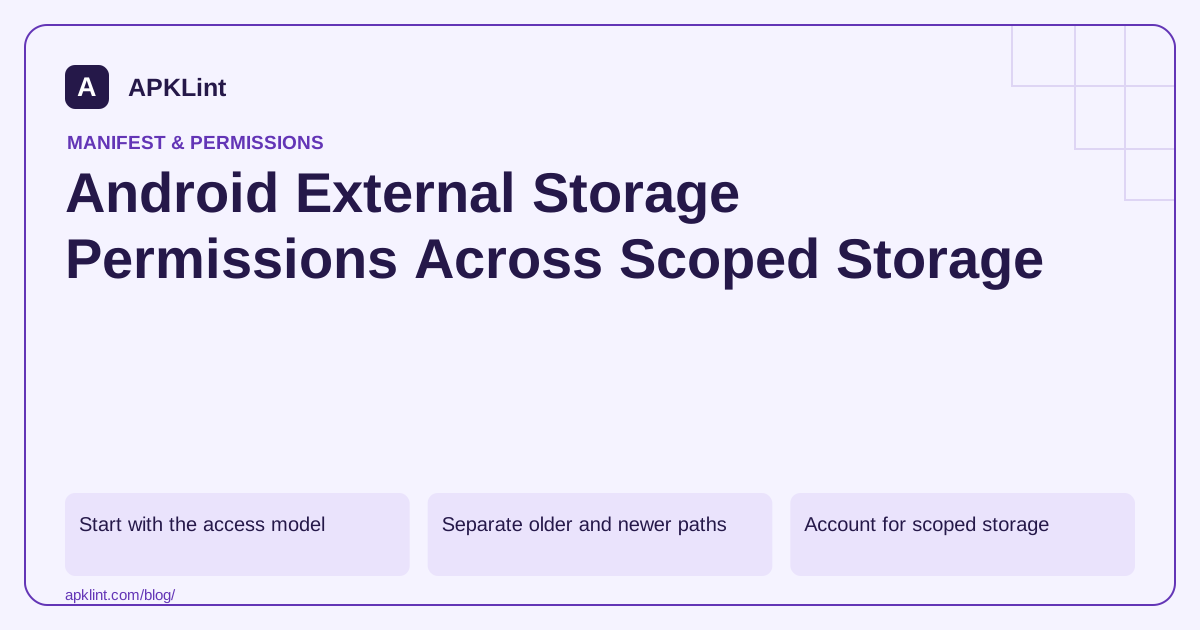
Start with the access model
The storage documentation distinguishes app-specific files, shared media and user-selected documents. App-specific storage often avoids broad permission requests. Shared media can use MediaStore, while a document or photo picker can grant access to a selected item.
“External” does not necessarily mean a removable SD card, and a path visible in a file manager is not necessarily available to every app.
Separate older and newer paths
| Need | Review direction |
|---|---|
| Support older Android releases | Apply legacy permissions only to the API range that needs them |
| Read shared images or video on newer releases | Review granular media permissions and limited access |
| Let the user choose a few files | Prefer a system picker |
| Manage broad shared storage | Evaluate all-files access and Play eligibility separately |
Use maxSdkVersion only when it matches a tested compatibility path. It is not a universal way to silence a permission warning.
Account for scoped storage
Scoped storage changes what shared paths an app can access even when older permissions appear in the manifest. The media guidance is the appropriate reference for current media operations. Do not assume that raising targetSdk preserves a legacy direct-path workflow.
Migrate code to work with content URIs and explicit user choices where possible. Handle files that move, become unavailable or are no longer granted.
Do not jump to all-files access
MANAGE_EXTERNAL_STORAGE is a special, broad capability with separate distribution-policy restrictions. It is not the standard fix for an image upload button or PDF picker that broke after a target update.
Test the final behavior
Test fresh install, OS upgrade, target-SDK update, permission denial and selected-file access. APKLint's permission checker can identify stale or broad declarations, but the actual file-opening code and provider behavior need device testing. Record which API ranges each declaration supports so future updates do not reintroduce unnecessary access.
Repair a document import after a target-SDK change
Suppose an older app remembers a shared-storage path and opens it directly each time a user imports a report. After a target update, that path can stop being accessible even though an old storage declaration remains in the manifest. First identify the file's storage category and the operation required. A user-selected report is a different access problem from an app-owned cache or a full media browser.
The Android storage overview describes the supported categories and their APIs. Replace assumptions about universal path access with a suitable selection or content-provider workflow. Keep the provider URI and its granted access together; a display name such as report.pdf is not enough to reconstruct an accessible path.
Compare the old and migrated paths with the same document
Use a synthetic document whose contents are known, then import it on a supported older device and on the newer storage model. Verify the decoded result, not just the presence of a filename in the UI. Include a second document with a different size and contents to catch reuse of a stale stream or cached result.
Test cancellation, a document moved by its provider and a URI that is no longer readable. Report those conditions as input availability problems instead of asking for an unrelated broad permission. If the app needs repeated access, use the documented grant-lifetime mechanism for the selected provider workflow and handle revocation at the actual open operation.
Keep API-specific legacy declarations only where the corresponding code path genuinely needs them. A maxSdkVersion value should follow the supported compatibility design and device tests. Adding several older and newer storage permissions does not repair a direct-path assumption by itself and can make the application's access request harder to explain.
For shared images or video, review the current media model separately from arbitrary documents. For app-created temporary files, prefer the appropriate app-specific location and define cleanup behavior. Do not move private working files into broadly visible storage simply to make an old open-file call succeed.
After the migration, compare fresh installation and upgrade behavior. Existing saved paths may require an explicit user reselection rather than an automatic conversion to an invented URI. Preserve unrelated user data during that transition and explain why access must be selected again. The completed repair replaces the unsupported access assumption while retaining the import feature's intended behavior.
Sources and further reading
- Android Developers: Data and file storage overview
- Android Developers: Access media files from shared storage
- Android Developers: Manage all files on a storage device
Reference review: 29 September 2026. Examples illustrate the workflow; check your installed versions, release artifact and account-specific Console requirements before applying them. This guide is not a claim that APKLint executed your project or verified your private account.

Android inspection tools and practical release guides. About APKLint · Report a correction