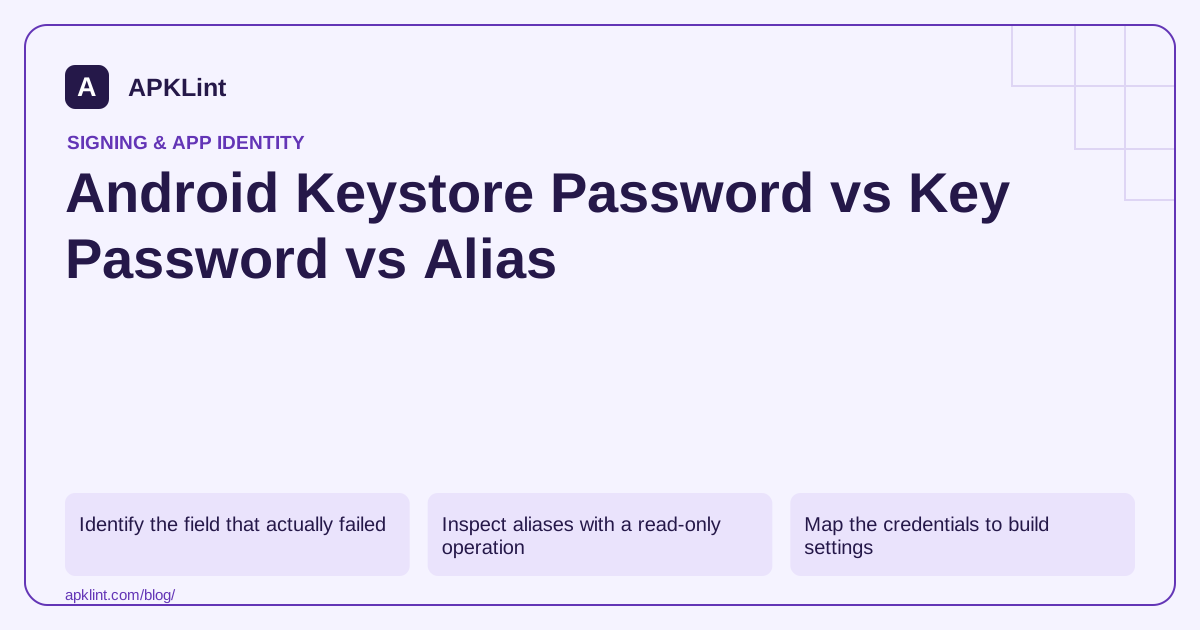
Identify the field that actually failed
Read the error message before changing credentials. “Keystore was tampered with, or password was incorrect” is not the same problem as “alias does not exist” or “cannot recover key.” The file path and keystore format can also be wrong.
Do not repeatedly rewrite the release configuration without preserving the original. First confirm that the file belongs to the intended app and release system. Signing configuration.
Inspect aliases with a read-only operation
Use:
keytool -list -v -keystore release-keystore.jks
The tool prompts for the store password. Listing the expected alias and certificate demonstrates that you can read the store, but it does not necessarily prove that the build can unlock the private key using its configured entry password.
Keystore formats and tooling can impose different password behavior. Do not assume that two fields must always differ simply because a UI exposes both.
Map the credentials to build settings
| Build setting | Meaning |
|---|---|
storeFile |
Location of the keystore container |
storePassword |
Credential used for that container |
keyAlias |
Name selecting the intended entry |
keyPassword |
Credential for the private-key entry when applicable |
In CI, inspect whether an environment variable is missing, includes an accidental newline or refers to an older secret version. Log only whether a value is present, never the value itself.
Avoid destructive “fixes”
Creating a new keystore with the same alias does not recreate the old key. Changing a file extension does not convert its format. Uploading a private keystore to an unknown recovery service exposes a credential that can affect future releases.
For a lost upload credential under Play App Signing, investigate the official reset path. For a self-managed signing key, recovery possibilities depend on backups and the established distribution arrangement.
Verify after a legitimate correction
Build the intended release variant and compare the output certificate with the expected fingerprint. Then test the real upload or update path. A successful local Gradle task is not enough if it silently used another signing configuration.
APKLint's certificate tools inspect public package metadata. They neither require nor recover the keystore password. Keep credential troubleshooting in your controlled local or CI environment.
Isolate the failing layer with read-only checks
Suppose CI can list the keystore but fails when signing with the configured alias. First compare the listed aliases with the alias selected by the release task. If the intended entry is absent, changing the private-key password will not select it. If the entry exists, establish its type and whether the build can access the private key under the store format and credential arrangement in use.
Run these checks in the approved release environment and record only the result category. Do not print candidate passwords, base64-encoded private stores or environment-variable values into the build log. The keytool reference describes listing and store handling; listing public certificate information is a different operation from proving that a signing task can unlock the selected private entry.
Check how a secret reaches the build
A secret can be correct in the vault and still be delivered incorrectly to the job. Inspect the variable name, secret version, file-mount path and whether the job is authorized to receive it. If a value is absent, fail with an actionable missing-configuration error rather than silently falling back to debug signing. If a decoded keystore file is empty or truncated, preserve that failure category without exposing its contents.
Use a controlled test to confirm the corrected path: run the intended release task, inspect the output's certificate and compare it with the expected public fingerprint. This catches a configuration that successfully signs with the wrong available alias. Do not treat a green build as sufficient evidence of the intended signing identity.
After the correction, document the root cause precisely, such as an obsolete secret reference or a wrong entry alias. Keep the underlying credential unchanged when no credential rotation was needed. Replacing the key merely to resolve a path or alias error can create a much larger release-continuity problem, while leaving the original configuration defect unexplained.
Sources and further reading
Reference review: 29 September 2026. Examples illustrate the workflow; check your installed versions, release artifact and account-specific Console requirements before applying them. This guide is not a claim that APKLint executed your project or verified your private account.

Android inspection tools and practical release guides. About APKLint · Report a correction