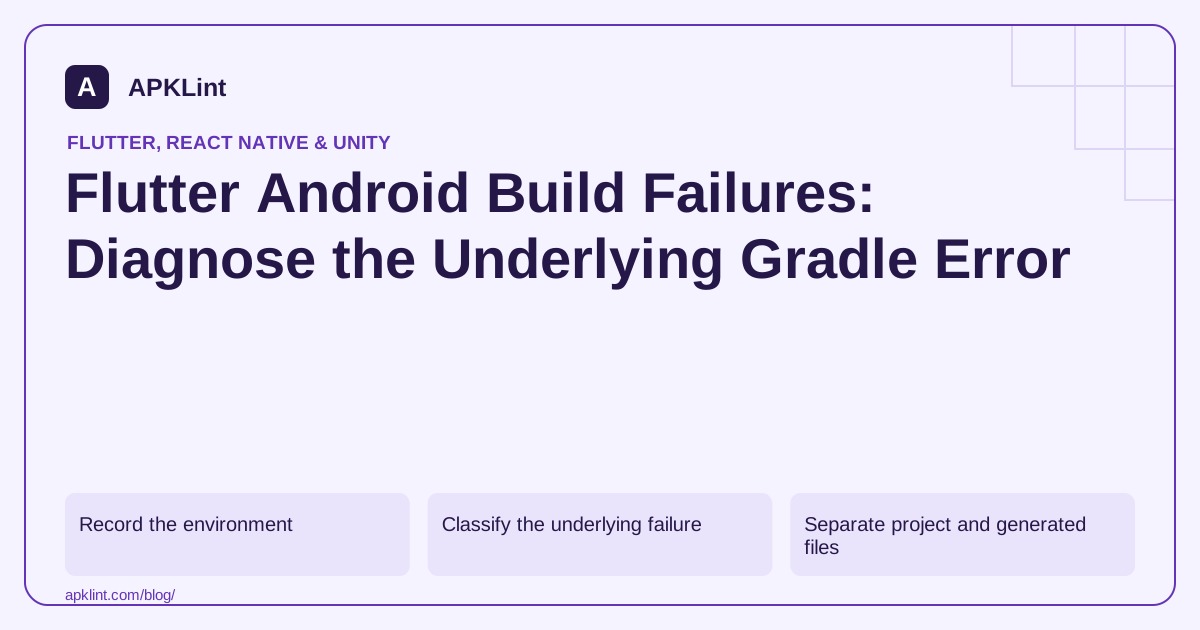
Record the environment
Capture Flutter version, Java path, Android SDK and the failing command:
flutter doctor -v
flutter build apk --release -v
Verbose output can contain local paths and configuration details; redact secrets before sharing it.
Classify the underlying failure
| First error | Investigation |
|---|---|
| Unsupported Java/Gradle combination | JDK and wrapper compatibility |
| Manifest merge failure | SDK levels, attributes and plugin manifests |
| Missing class or duplicate class | Android dependency graph |
| Signing configuration failure | Keystore path, alias and secret availability |
| Native compilation failure | NDK/toolchain and plugin compatibility |
The Flutter release guide, AGP documentation and Android JDK guide provide the relevant compatibility boundaries.
Separate project and generated files
Changes to generated or cached build output can disappear on the next build. Fix the source configuration, plugin version or supported template that generates it.
Do not paste a new AGP version into an old project without checking its Gradle, JDK and framework compatibility.
Use cleanup as a diagnostic, not a cure-all
A clean build can rule out stale outputs after configuration changes. It cannot correct a wrong dependency coordinate or an incompatible native plugin.
Change one cause at a time and keep the failing log so you can prove which correction resolved it.
Validate the intended release
A debug build succeeding after the fix does not clear a release signing or optimization failure. Re-run the original release command and test the artifact.
APKLint's Build Analyzer and Flutter Analyzer can support configuration and package review, but they do not execute Flutter or Gradle in your environment. Keep the successful command, toolchain versions and release test with the fix.
Find the first actionable error below the Flutter wrapper
Suppose the last line says that assembleRelease failed, while earlier output reports an unsupported Java version. The final task name identifies where the build stopped, not the compatibility cause. Capture the Java executable selected by Flutter and compare it with the project's Gradle wrapper and Android Gradle Plugin requirements. A separate terminal command using another Java installation can give a misleading version number.
The Flutter Android release guide describes the Android build layer, and Flutter's migration guides document framework-specific transitions. Use guidance matching the installed framework and project template. Updating one tool to the newest available version can create a second incompatibility if its partners remain unchanged.
Reduce a plugin failure without editing generated output
If a plugin contributes the failing manifest or native task, identify its exact locked version and Android dependency requirements. Reproduce the issue with the affected release variant and a minimal feature using that plugin. Check whether a supported plugin update resolves the cause, or whether the application configuration conflicts with the documented integration.
Do not patch a file under a package cache or generated build directory and assume the team has a durable repair. Such edits can disappear on another machine. Make the change in the owned source configuration, use a supported dependency version, or maintain an explicit reviewed patch under the project's dependency process.
After fixing the first cause, rerun the original command and inspect any new first failure. A build can contain several independent problems, especially after a toolchain migration. Keep successful dependency resolution separate from signing, native compilation and packaging. Test a clean checkout or CI-equivalent environment once local output succeeds so an undocumented machine setting cannot conceal the dependency.
Install the resulting release and exercise the plugin's actual feature, including an expected denial or unavailable-resource case. Retain the lockfiles, selected Java path, framework version and artifact digest with the result. A successful debug run cannot validate release-only optimization or signing, and deleting caches cannot substitute for explaining why the corrected toolchain and dependency combination is supported.
Sources and further reading
- Flutter: Build and release an Android app
- Android Developers: Current Android Gradle plugin release notes
- Android Developers: Java versions in Android builds
Reference review: 29 September 2026. Examples illustrate the workflow; check your installed versions, release artifact and account-specific Console requirements before applying them. This guide is not a claim that APKLint executed your project or verified your private account.

Android inspection tools and practical release guides. About APKLint · Report a correction