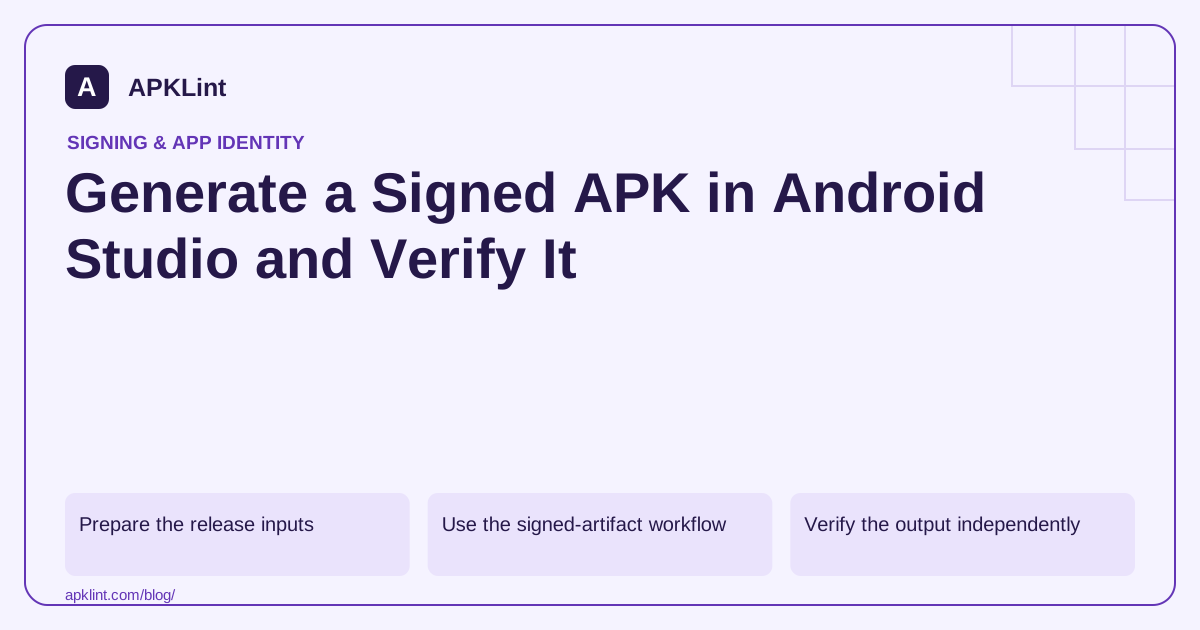
Prepare the release inputs
Confirm the application ID and version code, and locate the authorized signing keystore and alias. Do not create a new key for an existing app merely because the old file is inconvenient to find; an unrelated key can break update continuity.
Keep passwords in an approved secret store. Back up the keystore and recovery information separately from a developer's laptop. Android signing documentation.
Use the signed-artifact workflow
In Android Studio, use Build → Generate Signed Bundle / APK, then choose APK. Select the application module, supply the intended keystore and alias, and choose the release variant and output location. Studio labels can vary by version; action search can locate the signed-artifact command.
If the goal is a normal Google Play publishing release, check whether the required output is an AAB instead. Choosing APK simply because it installs locally can be the wrong distribution decision.
Verify the output independently
After the build succeeds, inspect the exact output file:
apksigner verify --verbose --print-certs app-release.apk
apkanalyzer manifest application-id app-release.apk
apkanalyzer manifest version-code app-release.apk
Read verification status and compare the certificate fingerprint with the release record. These commands should target the new output, not an older file with the same name. apksigner reference.
Test the release-specific paths
A minified release can behave differently from debug. Test initialization, authentication, dynamically loaded resources, deep links and integrations bound to the signing certificate. Keep mapping files and native symbols associated with this version code.
Test an update over a representative previous release when appropriate. A clean install does not prove that the new build preserves user data or update identity.
Avoid two common certificate mistakes
The certificate used for a local signed APK may differ from Google's app-signing certificate for store-delivered APKs. Register the correct fingerprints with Firebase or API providers for each distribution path.
A valid signature also does not certify security, quality or Play policy compliance. It confirms the artifact passes signing verification under the tool's rules. APKLint's signing tools can display useful certificate metadata, but cryptographic integrity verification belongs to a signing-aware verifier such as apksigner.
Select the artifact by its build record
After the signed build finishes, record the variant, output path, file digest and completion time. A project can contain several old files named app-release.apk, so dragging the first search result into a test device is unreliable. Verify the package identity, version and signer on the exact file that will be distributed.
The Android signing guide distinguishes local signing from Play App Signing. For a Play-bound bundle, use the intended upload credential and separately verify the signing identity of store-delivered APKs through the official app-signing record. The upload key is not automatically the certificate that an API provider sees from a user's installed app.
Include one realistic update test
Install the currently supported previous release on a controlled device, create synthetic local data and then install the signed candidate through the intended update path. Confirm that the package manager accepts it and that saved data remains usable. A fresh installation can validate startup but cannot establish update identity or migration behavior.
Exercise a certificate-bound integration such as sign-in using the distribution-specific fingerprint. If it fails only in the signed release, compare registration, package ID and certificate before changing application logic. For an optimized build, also trigger a test-only diagnostic event and confirm that its matching mapping or symbols make it usable.
Keep the private keystore and passwords out of screenshots, support attachments and general build artifacts. Public certificate fingerprints can support identity checks without disclosing the private key. Archive the final candidate and diagnostic artifacts under the same release record, then remove temporary test triggers or gate them appropriately. If a key cannot be located, use the product's documented recovery or upload-key-reset process as applicable; generating an unrelated key may create a validly signed file that cannot update existing users. A successful Studio build and signature verification are necessary observations, while deployment compatibility and application behavior require the separate checks described here.
Sources and further reading
Reference review: 29 September 2026. Examples illustrate the workflow; check your installed versions, release artifact and account-specific Console requirements before applying them. This guide is not a claim that APKLint executed your project or verified your private account.

Android inspection tools and practical release guides. About APKLint · Report a correction