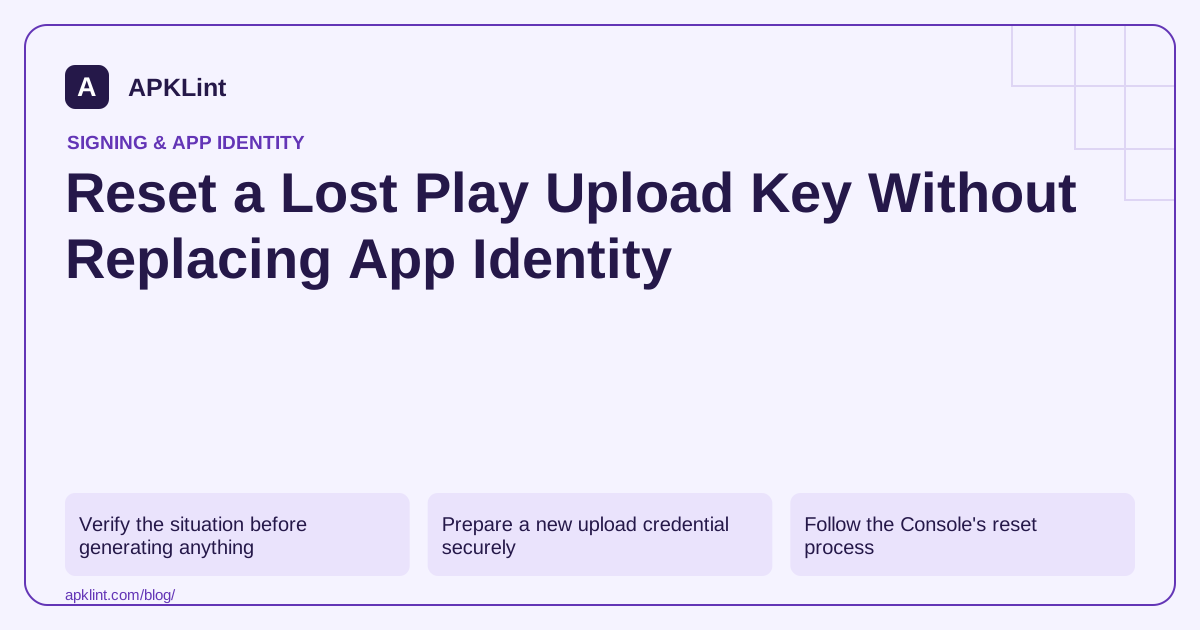
Verify the situation before generating anything
Open the app's Play App Signing area and compare the registered upload certificate with your release records. Check whether another authorized CI environment or backup still contains the credential. A build error caused by an incorrect alias should not trigger an unnecessary key reset.
The upload key authenticates submissions; the app-signing key signs the delivered APKs. Losing a self-managed app-signing key is a different problem. Google Play's signing guide.
Prepare a new upload credential securely
Generate a new upload key through the documented signing process and keep its private material in your approved secret store. Export the public certificate required by the Console workflow, for example:
keytool -export -rfc \
  -keystore new-upload.jks \
  -alias upload \
  -file upload-certificate.pem
This exports the certificate, not the private key. Enter the store password locally. Confirm the alias and fingerprint before attaching the public certificate to a reset request. Android signing.
Follow the Console's reset process
Use the upload-key reset action available to an appropriately authorized account in the Play App Signing area under Protected with Play. Follow the reason, certificate and confirmation requirements shown for your app. UI labels, permission requirements and activation timing can vary; do not assume the replacement is active immediately after submission.
Retain the confirmation and effective date. Avoid repeated uploads with different candidate keys while the reset is pending, because that obscures which configuration is being tested.
Update the entire release path
Replace the CI credential, local release reference and recovery documentation together. Ensure the build uses the new file and alias, then inspect the signed artifact before uploading.
Do not change Firebase registrations for Play-installed APKs solely because the upload key changed. Those integrations usually depend on the relevant installed-app certificate, which is a separate identity.
Prove the operational recovery
After activation, upload a legitimate new version and retain its certificate and version-code evidence. Archive or revoke obsolete access according to your security process, while preserving required audit records.
APKLint can help inspect public signing metadata. It cannot authorize a reset, alter Console state or recover the old private key from an APK. The successful outcome is a documented, reproducible release pipeline—not just one accepted upload.
Record why a reset is necessary
Before initiating a reset for an enrolled app, distinguish a lost credential from a build job selecting the wrong available credential. Compare the expected upload certificate with the configured release identity and check the authorized recovery records. If the intended store is available and the failure is an incorrect alias or file mount, repair that configuration instead of changing the registered upload identity.
For a genuine loss or compromise, create a change record that identifies the app, old public upload fingerprint, proposed new fingerprint and the authorized operator. Keep private material in the approved secret store. The public certificate exported for the reset request should be checked against the new key before it is submitted, so an incorrect alias is not registered by mistake.
Separate submission, activation and pipeline validation
A request being submitted is not the same state as the replacement being active. Retain the Console confirmation and effective timing, and configure the pipeline according to that status. The official Play signing help is the reference for the supported reset workflow. Avoid inventing a universal activation delay or assuming every account exposes the same actions.
After activation, build a legitimate candidate with the new upload credential and inspect its certificate before attempting the intended upload. If the upload is rejected, compare the candidate, registered certificate and activation state before generating yet another key. Repeatedly changing all three at once makes it difficult to identify which state is wrong.
Close the recovery with the new secret reference, public certificate record, backup check and successful release-path evidence. Keep the installed app-signing identity separate; replacing the upload credential does not by itself mean users receive APKs signed with a new app-signing key. Document obsolete credential handling according to your incident or retention process, including any confirmed compromise, so the next operator knows why the reset occurred and which configuration is now authoritative.
Sources and further reading
Reference review: 29 September 2026. Examples illustrate the workflow; check your installed versions, release artifact and account-specific Console requirements before applying them. This guide is not a claim that APKLint executed your project or verified your private account.

Android inspection tools and practical release guides. About APKLint · Report a correction