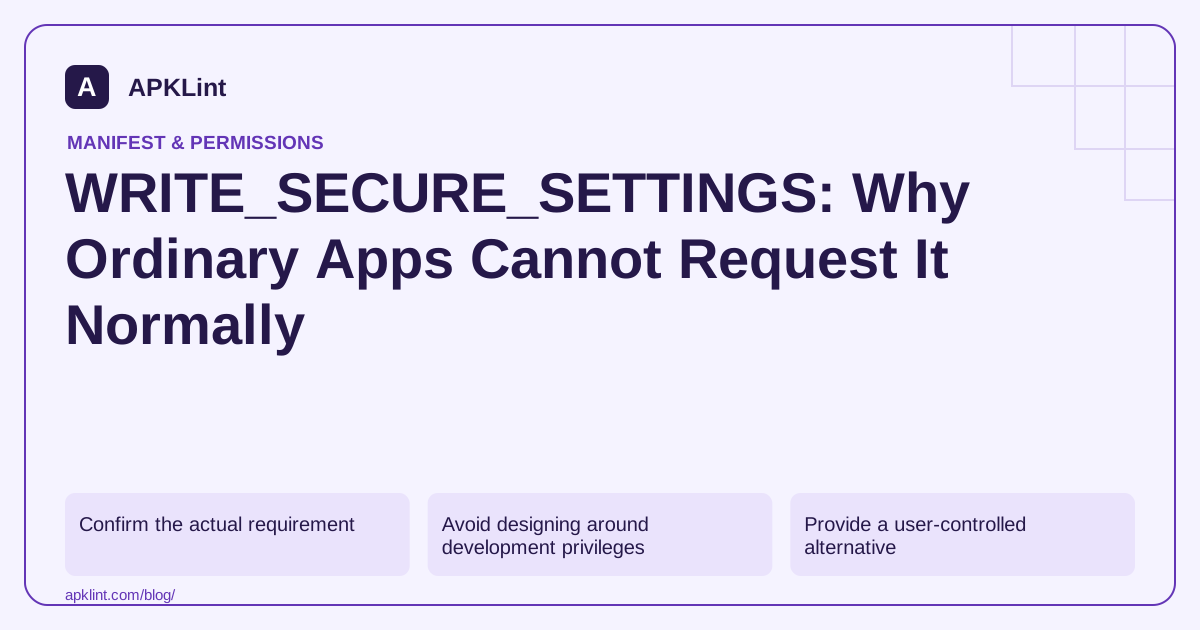
Confirm the actual requirement
The permission reference documents the protection attached to this capability. Before adding it, identify the precise setting your feature wants to change and whether Android exposes a user-mediated or managed-device API for that action.
Do not confuse it with WRITE_SETTINGS, which has its own special-access behavior. Similar names do not imply equivalent privileges.
Avoid designing around development privileges
A capability available through an authorized development shell, system image or managed-device environment does not automatically exist for an ordinary installed app. Tests performed on a rooted or specially configured device can conceal this difference.
| Environment | Review question |
|---|---|
| Normal consumer install | Is there a documented user-facing API? |
| Enterprise managed device | Does the management role permit this exact operation? |
| Platform/system app | Does the signing and privilege configuration satisfy platform rules? |
| Development test device | Is the result dependent on temporary privileged setup? |
Do not instruct ordinary users to weaken device security merely to make an optional feature work.
Provide a user-controlled alternative
Where a system settings screen is the intended interface, explain the change and let the user make it. Detect the actual state afterward instead of assuming that opening the screen changed anything.
For features that cannot be implemented through supported consumer APIs, state the limitation clearly. A manifest entry cannot manufacture platform authority.
Handle failure explicitly
A protected-setting write may throw a security exception or fail under the API's contract. Do not catch every error and report success. Keep the UI consistent with the actual state and avoid repeatedly retrying a prohibited operation.
Use APKLint to flag the design issue
The Dangerous Permissions Checker can identify this declaration for review. It cannot grant the permission, bypass Android restrictions or establish enterprise eligibility. Treat the finding as a prompt to revisit the feature's access model, not as a missing runtime-dialog implementation.
Reproduce the feature on an ordinary installation
Suppose a prototype changes a protected setting on a development device but fails on a tester's normal phone. Record whether the development environment used shell-granted privileges, a custom system image or an enterprise management role. Reinstall and test under the same authority expected for the actual product before treating the difference as a missing permission dialog.
The WRITE_SECURE_SETTINGS reference makes clear that this is not an ordinary third-party capability. Adding its name to the manifest does not make a consumer installation eligible to change protected settings. Keep this separate from WRITE_SETTINGS and its own supported special-access model.
Use a supported settings screen when the user owns the decision
If the platform exposes the desired change through a user-facing settings screen, explain what the user can change and open the documented destination where available. On return, read the actual state through a supported API. The screen being opened successfully does not mean the setting changed, and pressing Back should leave a clear unchanged state.
Test with the destination activity absent or restricted on a supported device. Provide an understandable limitation rather than repeatedly launching the same failing intent. Do not report that the feature was enabled merely because the application reached the code after startActivity.
For an enterprise-only feature, document the exact management role and supported policy API. A managed-device capability should remain visibly limited to that environment, with a normal consumer installation following a different supported path. Avoid inferring that every application installed by an organization has device-owner authority.
Test the operation's failure contract explicitly. If a protected write throws or returns failure, preserve the previous visible state and record a non-sensitive diagnostic category. Broad exception handling that always displays success hides a design problem and can lead the user to rely on a setting that never changed.
Finally, inspect release configuration for development-only assumptions and unnecessary protected declarations. Keep test-device provisioning separate from instructions for ordinary users. A successful repair may be a narrower supported feature or an honest environment limitation, rather than an attempt to obtain a privilege the product cannot legitimately receive. Verify the resulting user flow on the installation type the release actually supports.
Sources and further reading
Reference review: 29 September 2026. Examples illustrate the workflow; check your installed versions, release artifact and account-specific Console requirements before applying them. This guide is not a claim that APKLint executed your project or verified your private account.

Android inspection tools and practical release guides. About APKLint · Report a correction