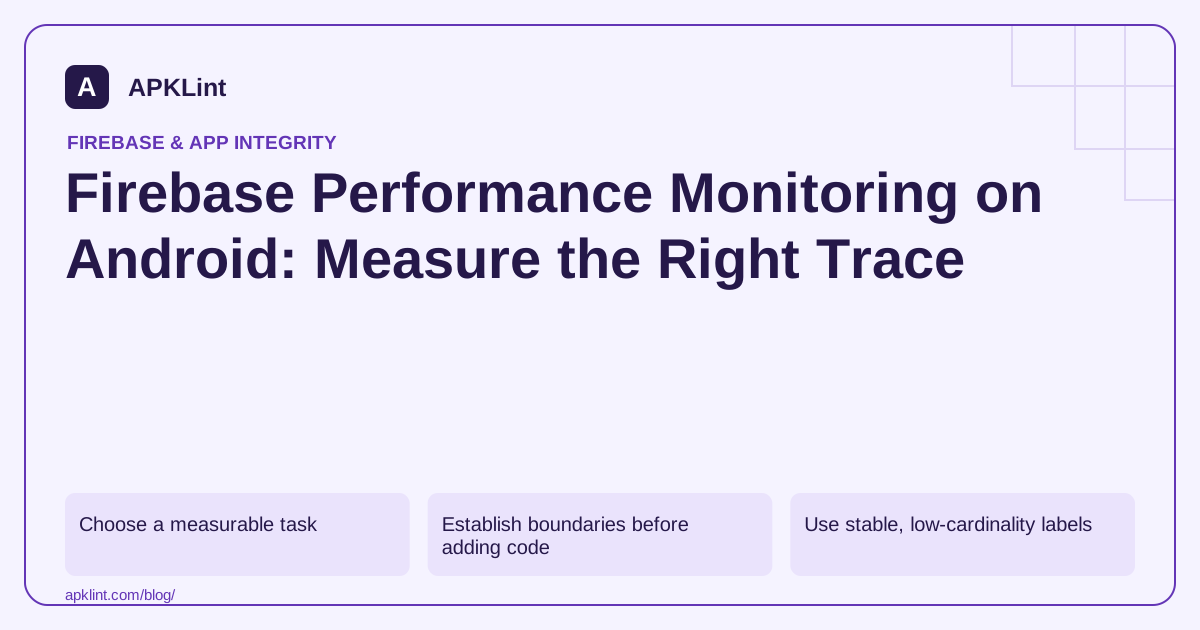
Choose a measurable task
Examples include loading a saved puzzle, rendering a document preview or completing a search response. Define whether the trace includes network time, parsing, rendering or all three.
The Android Performance Monitoring guide explains automatic and custom collection. Automatic metrics and custom traces should complement one another rather than measure the same action under unrelated names.
Establish boundaries before adding code
| Boundary | Decision |
|---|---|
| Start | User action or actual work start? |
| End | Data received or usable UI displayed? |
| Failure | Stop trace and record a non-sensitive outcome |
| Cancellation | End the trace rather than leave it open |
A trace that starts before a user waits on a confirmation dialog measures something different from processing time. Name it accordingly.
Use stable, low-cardinality labels
Avoid user IDs, document names, full URLs with tokens and unique request identifiers in trace names or attributes. These create privacy risk and make aggregation less useful.
Prefer controlled values such as cache hit/miss, operation type or success/failure where supported and appropriate. Review your data disclosures and collection controls for the actual SDK behavior.
Compare equivalent populations
A release with more low-end devices or poorer network conditions may show a slower aggregate without a code regression. Compare versions and relevant device/network segments, and confirm suspicious results with local profiling.
Instrumentation is not a substitute for a reproducible benchmark. A production trace identifies where to investigate; a profiler can reveal what the thread or allocation path did.
Verify collection deliberately
Perform a known test flow and confirm the expected trace in the correct Firebase app. APKLint's Performance Checker is a review aid, not a live profiler or a connection to your Firebase dashboard. Use it to structure the investigation, then retain real measurements before and after the change.
Measure catalog preparation with an explicit end
This illustrative Kotlin fragment measures an application-defined catalog load and decode operation. loadAndDecodeCatalog is your own function, and Firebase must already be initialized. The boundary ends when data preparation completes; it does not claim that the next UI frame has been drawn.
val trace = FirebasePerformance.getInstance().newTrace("catalog_prepare")
trace.start()
try {
    loadAndDecodeCatalog()
} finally {
    trace.stop()
}
The Android custom-trace guide documents creation, start and stop behavior. Keep the trace lifecycle tied to the actual operation, including failure and cancellation handling appropriate to your asynchronous code. Starting a trace around a function that merely schedules work would measure scheduling, not completion.
Compare cache hits with equivalent misses
For a catalog with local caching, collect controlled hit and miss cases. Use a low-cardinality attribute such as a documented cache outcome if your collection policy permits it. Do not put catalog contents, user IDs or unique request URLs into trace names. A stable trace name allows comparable operations to aggregate instead of creating one series for every user action.
Suppose misses become slower after a release while hits remain similar. Investigate the network and decoding path before changing layout code. Conversely, if the preparation trace stays stable but users report a delayed visible result, instrument or profile the rendering boundary separately. One duration cannot explain a stage outside the interval it measured.
Validate that the trace appears in the intended test Firebase app and that collection controls behave as designed. Compare representative device and network groups rather than attributing a population shift to a code regression. Use local profiling to inspect the suspected thread or allocation work, and repeat the same synthetic dataset before and after a correction. Report the measured scenario and its limits. Production monitoring can identify a pattern worth investigating, while a controlled benchmark provides stronger evidence that a particular implementation change improved that pattern.
Sources and further reading
Reference review: 29 September 2026. Examples illustrate the workflow; check your installed versions, release artifact and account-specific Console requirements before applying them. This guide is not a claim that APKLint executed your project or verified your private account.

Android inspection tools and practical release guides. About APKLint · Report a correction