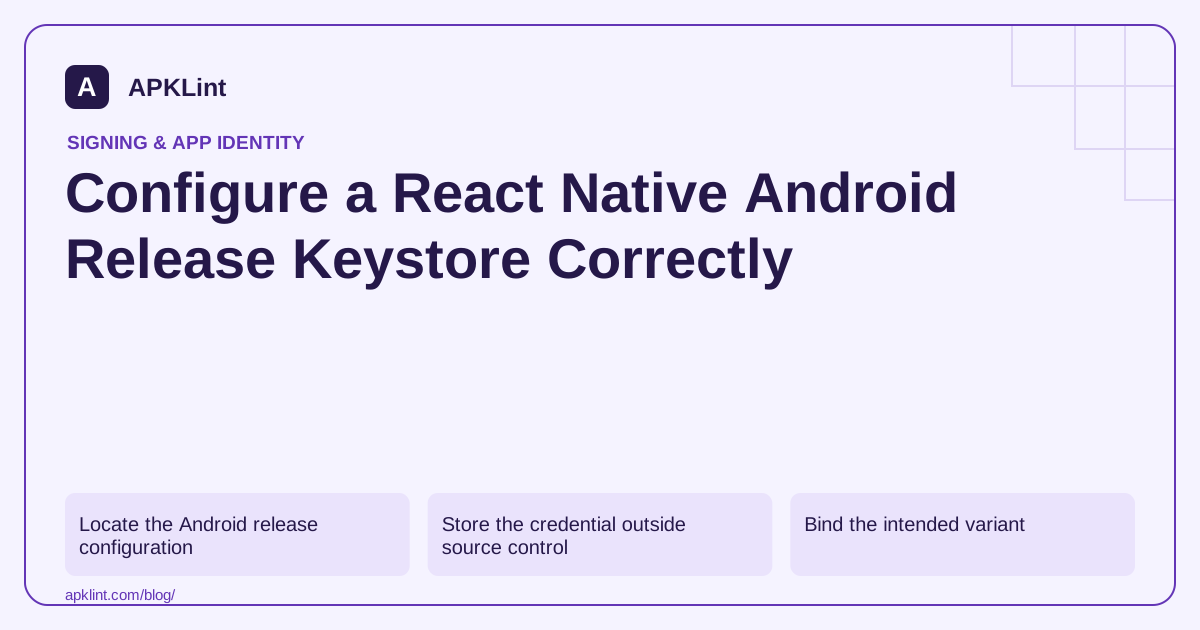
Locate the Android release configuration
Inspect the project's android/ directory, application module and Gradle properties or secret references. Follow the instructions for the installed React Native version rather than mixing a current project with an old template's build file. React Native publishing guide.
Determine whether the credential is for local APK distribution or Play uploads. For Play App Signing, the upload key can differ from the certificate on the installed store build.
Store the credential outside source control
Provide the keystore path, alias and passwords through a protected local configuration or CI secret system. Do not commit a private keystore just because it makes another developer's build easier. Keep a documented recovery copy with restricted access.
A public certificate fingerprint can be recorded in the release ledger; the private key and passwords should not appear there. Android signing.
Bind the intended variant
Check the release build type and any product flavors. A configuration that signs one variant correctly can leave another unsigned or using a debug key. Build the artifact for the intended application ID and inspect its actual certificate afterward.
For a generated APK, a verification step is:
apksigner verify --verbose --print-certs app-release.apk
For an AAB, use the bundle's appropriate signing inspection path; apksigner itself is an APK tool.
Test JavaScript packaging and certificate-bound features
A signed APK still needs its JavaScript bundle and native dependencies packaged correctly. Test startup without a Metro development server. Then test Google sign-in, Maps or other services using the certificate appropriate to the installation channel.
If authentication works locally but not through Play, compare certificate fingerprints before rewriting the JavaScript login logic.
Keep release evidence together
Archive the version code, source revision, React Native version, Android toolchain, signing fingerprint and relevant mapping/symbol files. Test an update over a previous release as well as a clean install.
APKLint's React Native analyzer can help identify packaged framework structure, while the certificate checker can display public metadata. Neither configures your Gradle signing block or guarantees that a Play upload, update or authentication flow will succeed.
Check a release flavor that inherited debug signing
Suppose a project's release APK installs successfully but its certificate fingerprint matches the development key. Inspect the selected flavor's effective signing configuration and the source of its credential values. A valid signature proves that some key signed the file, not that the authorized production or upload key was selected.
The publishing workflow describes the Android signing layer around the React Native bundle. Keep secret values in protected local or CI configuration and record only public identity information in ordinary release documentation. Do not copy another project's keystore to make an unexplained signing failure disappear.
Diagnose sign-in by installation channel
Imagine authentication working in a local release APK but failing after Play installation. Compare the application ID and the relevant certificate fingerprints with the service's authorized Android registrations. With Play App Signing, the certificate on the delivered app can differ from the upload credential used by the build. Rewriting the JavaScript sign-in handler does not repair that registration mismatch.
Test the intended local distribution and store track separately, recording which certificate each uses. A preview build or internal sharing path can have its own signing context, so avoid assuming that every build labeled internal is equivalent.
After correcting the configuration, inspect the newly built artifact and verify startup without Metro, since signing and JavaScript packaging are independent requirements. Exercise a native module and update over the actual prior release with synthetic saved data. Preserve version code, artifact digest, source maps and Android/native diagnostic files under the same release record. If an existing upload key is lost, use the supported recovery process rather than inventing a new installed-app identity. Recovery access should be controlled but available to the authorized release team. The finished signing setup should produce a predictable public identity and preserve update continuity while keeping private credentials out of source control, logs and general artifact archives.
Sources and further reading
Reference review: 29 September 2026. Examples illustrate the workflow; check your installed versions, release artifact and account-specific Console requirements before applying them. This guide is not a claim that APKLint executed your project or verified your private account.

Android inspection tools and practical release guides. About APKLint · Report a correction