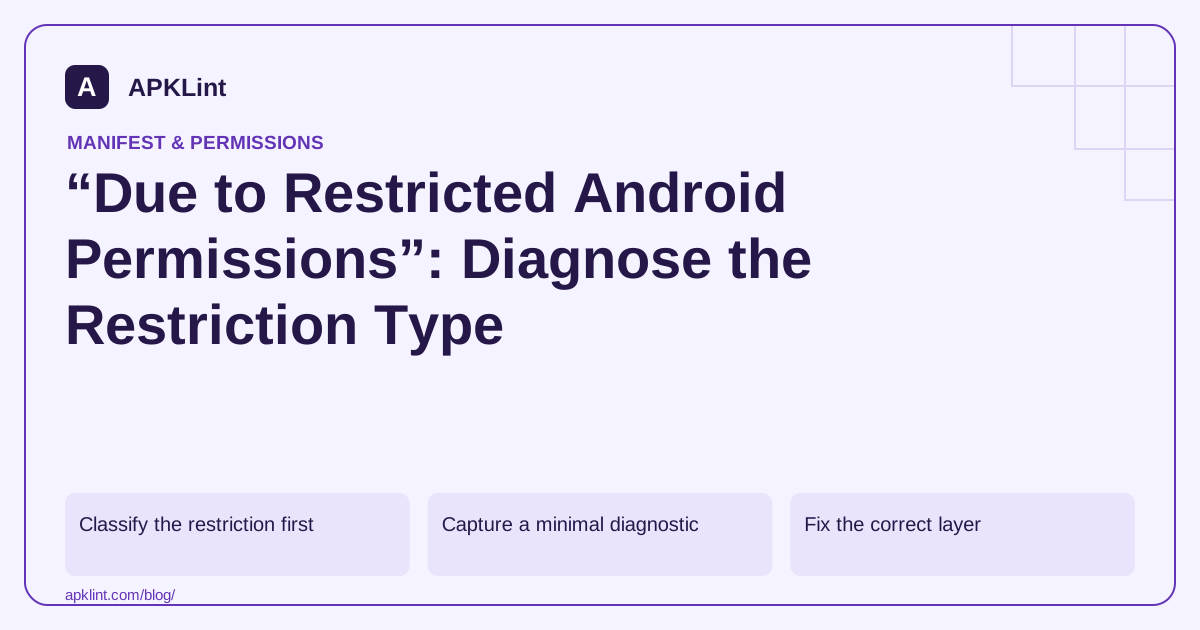
Classify the restriction first
| Evidence | Likely category |
|---|---|
| System permission dialog was declined | Ordinary runtime access |
| Feature requires a settings screen | Special app access |
| Permission has signature or privileged protection | Not available through a normal consumer grant |
| Managed-device message | Administrator policy or device role |
| Play Console rejection | Distribution-policy eligibility or declaration |
| Sideloaded app cannot enable a sensitive setting | Installation and platform trust restrictions |
Do not advise users to disable security protections before identifying the actual category.
Capture a minimal diagnostic
Record the exact message, feature action, app version, Android version, target SDK and distribution channel. For a developer-owned app, include the relevant API call and a redacted stack trace. Avoid collecting unrelated personal device data.
Use the permission reference to check the protection level and special-access guidance when a settings flow is required.
Fix the correct layer
A missing manifest declaration needs a build change. A denied runtime grant needs a respectful feature-level request and fallback. A signature-only capability needs a different supported design unless the app legitimately belongs to the required privileged environment.
A Google Play policy restriction is not fixed by showing the user another Android permission dialog. Review the current policy, the declared core feature and the submitted evidence.
Test the negative path
Reproduce the issue on an ordinary, clean test device rather than only on a development phone with historical grants. Test returning from settings without a change, revocation and managed-device restrictions where relevant.
Report the actual state in the UI. Do not display “permission granted” simply because an intent opened successfully.
Use APKLint to narrow the investigation
The Dangerous Permissions Checker can identify declarations and potential protection-level issues. It cannot alter device policy, grant privileged access or confirm store eligibility. Use it to establish what the release asks for, then investigate the specific platform or policy boundary shown by the evidence.
Separate a settings restriction from an app bug
Suppose a user reports that a sensitive service cannot be enabled and shares a system message referring to restricted settings. Preserve the exact wording and installation channel. Do not replace that evidence with a generic diagnosis of missing runtime permission. A service-enablement restriction, a managed-device rule and a declined camera dialog operate at different boundaries.
For a developer-owned application, reproduce on an ordinary test device using the intended distribution path. Compare the service declaration and user-facing setup with the applicable platform guidance. If an administrator controls the device, distinguish that management decision from an application defect; repeatedly opening settings cannot grant access the device policy forbids.
Choose a supported design for the required capability
The Android permission model separates install-time, runtime and special access mechanisms. Inspect the exact permission's reference and the API that needs it. A capability reserved for a trusted signing relationship or privileged environment may require redesigning a consumer feature around a supported public API.
For example, an app that wants to help a user change a setting can sometimes open the appropriate system UI and explain the next step. That is different from silently writing a protected setting. Report the result after checking the actual state, not merely after the settings intent launches. Returning without a change should leave a clear, usable reduced-function state.
If the restriction comes from store policy, preserve the policy notice, affected permission and claimed core feature, then review eligibility and declarations through the official channel. A technically available permission is not automatically approved for every distribution use. Test the repaired workflow with access allowed, denied and unchanged after a settings visit. Keep unrelated features usable and avoid advising blanket removal of device protections. The investigation should end with a specific classification and supported recovery path, or an explicit explanation that the desired operation is unavailable in the application's legitimate environment.
Sources and further reading
- Android Developers: Manifest.permission reference
- Android Developers: Request special permissions
- Google Play: Permissions and APIs that access sensitive information
Reference review: 29 September 2026. Examples illustrate the workflow; check your installed versions, release artifact and account-specific Console requirements before applying them. This guide is not a claim that APKLint executed your project or verified your private account.

Android inspection tools and practical release guides. About APKLint · Report a correction