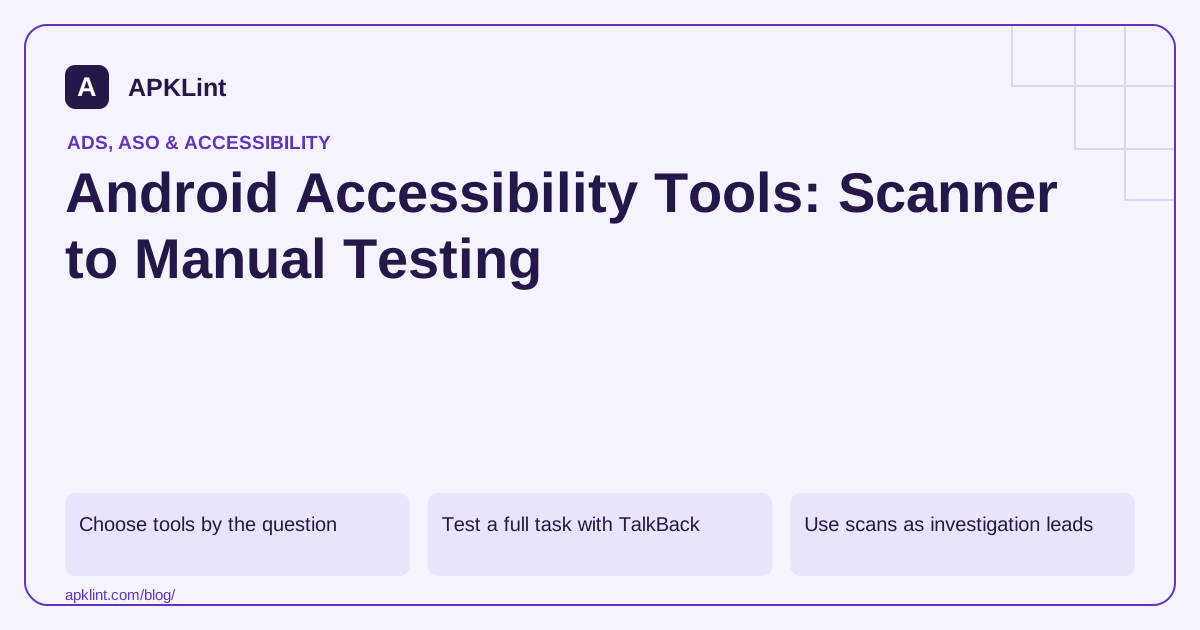
Choose tools by the question
| Tool or method | Useful for |
|---|---|
| TalkBack | Spoken labels, focus order and nonvisual task completion |
| Switch Access or keyboard | Reachability without precise touch gestures |
| Accessibility Scanner | On-screen suggestions about labels, targets and contrast |
| Compose UI Check | Design-time checks across preview configurations |
| Automated UI tests | Repeatable assertions about semantics and interaction |
| Testing with disabled users | Barriers that implementation assumptions miss |
Android's current accessibility documentation is increasingly Compose-oriented, with separate Views references where needed. Use the branch matching the UI technology rather than applying a Views attribute mechanically to a composable.
Test a full task with TalkBack
Enable TalkBack through the device's Accessibility settings; OEM navigation can differ. Move through the app in sequence, activate controls and complete the main task without relying on visual position.
Listen for unnamed icons, duplicate labels, unexplained state changes and focus moving behind a dialog. A button described only as “button” needs a meaningful accessible name, not another decorative icon.
Use scans as investigation leads
Run a scanner on representative screens and states, including errors, expanded menus and dialogs. Fix the underlying layout or semantics rather than hiding elements from accessibility to silence a warning.
A tool can flag contrast or target size but cannot decide whether instructions make sense to a first-time user.
Record reproducible findings
Include app version, device, OS, assistive technology, starting state, actions and expected outcome. Prioritize barriers that prevent task completion before cosmetic improvements.
APKLint's Accessibility Checker is a review aid for selected inputs and checklist signals. It is not Google's on-device Accessibility Scanner and does not operate TalkBack inside your app.
Use Android's testing guide and accessible-app guidance to choose complementary tests. Name the methods actually performed instead of declaring complete compliance after a single automated report.
Use the same settings row to understand each tool's role
Consider a settings row containing a title, explanation and switch. A visual scanner may identify a small target or weak text contrast. TalkBack can reveal whether the row and switch are announced twice or whether the current state is missing. Keyboard or Switch Access testing can show whether the same setting can be reached and changed without a precise touch.
The Android accessibility testing documentation combines these methods. Preserve the actual screen state when recording a finding. A scan of the default setting does not cover the enabled, disabled, loading or error state that appears after interaction.
Choose the repair that addresses the observed barrier
If the switch has an unclear name, fix the semantic relationship between the setting label and control. If it is announced twice because both the row and child expose the same action, review grouping and interaction ownership. Simply hiding the child from accessibility can create another problem if the row does not provide an equivalent action and state.
After changing the component, repeat the task using the method that found the issue. Also inspect the other interaction modes, because a grouping change that improves speech output can alter keyboard focus or touch activation. A tool warning disappearing is only one part of the result.
Use the appropriate Views or Compose testing APIs to protect stable semantics and action behavior. Keep the test tied to the user's operation, such as enabling notifications and hearing the new state, rather than asserting only an internal implementation property.
When involving users with disabilities, provide realistic tasks and a usable test environment. Record the barriers and outcomes without treating one participant's experience as universal. Feedback can uncover confusing language or workflow assumptions that automated rules cannot infer.
Keep a coverage record naming the tools and methods actually used. A website-based review of source text, an on-device scan and a full assisted task test are different activities. Describing them accurately makes the resulting evidence more useful to the designer and developer responsible for the fix.
Sources and further reading
Reference review: 29 September 2026. Examples illustrate the workflow; check your installed versions, release artifact and account-specific Console requirements before applying them. This guide is not a claim that APKLint executed your project or verified your private account.

Android inspection tools and practical release guides. About APKLint · Report a correction