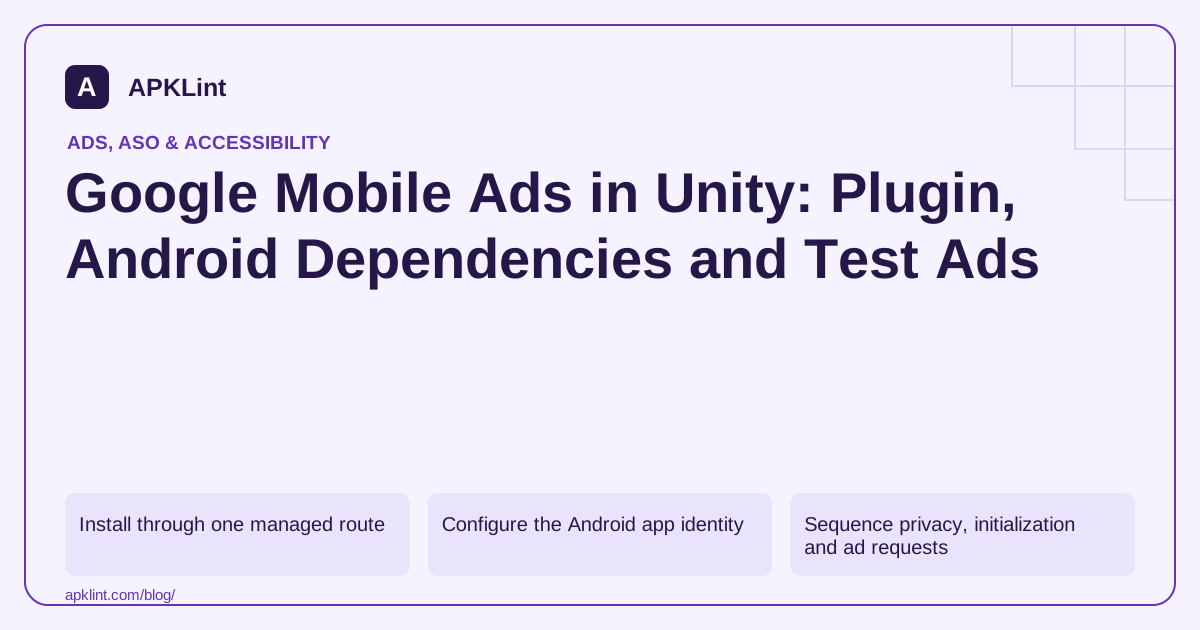
Install through one managed route
Use a supported package installation method and record the plugin version. When migrating between a .unitypackage import and a package-manager route, follow Google's cleanup instructions so old assets and native libraries do not remain alongside the new package.
Duplicate plugin files can produce Gradle conflicts or runtime behavior that differs from the version shown in Unity's package list.
Configure the Android app identity
The current plugin guide places the app-ID settings at Assets → Google Mobile Ads → Settings. Supply the Android AdMob app ID, not an ad-unit ID or Firebase app ID.
Inspect the generated Android manifest and resolved dependencies after export. Also distinguish the plugin's minimum SDK requirements from Google's current Play submission target: a plugin guide's compatibility baseline does not override the later store deadline.
Sequence privacy, initialization and ad requests
Apply required consent and audience controls before initializing components that may preload ads. Call the plugin's initialization once through a controlled owner and follow its callback guidance.
Do not assume every callback is safe for immediate Unity object access. Marshal interactions with UnityEngine objects onto the appropriate main-thread path described by the plugin version.
Test the built game
| Scenario | Check |
|---|---|
| First launch | Consent and initialization do not race |
| Scene transition | Old ad objects and callbacks are cleaned up |
| Rewarded completion | Reward granted once for the documented callback |
| Background/return | No duplicate ad load or blocked game input |
| Release optimization | Required native/plugin code remains available |
Use Android demo ad units or configured test devices. Editor simulation is not equivalent to a real Android integration test.
APKLint's SDK detector can help inspect the exported artifact, but it cannot validate your AdMob account or execute Unity scenes. Use the current Unity plugin setup and test-ad guidance, preserving the plugin and native dependency versions with the game release.
Give advertising one owner across scene changes
Consider a game with a menu scene and a level scene. If each scene contains a controller that initializes the plugin, loading the level can create another owner while callbacks from the menu are still pending. Decide which object owns initialization and which scene owns each displayed ad. A persistent initialization object should not retain references to destroyed scene objects.
The Unity plugin setup guide describes the installation, settings and callback thread boundary. Keep operations that touch Unity objects on the documented main-thread path. A background callback should report a result through that boundary instead of directly changing a scene's score label or opening a game panel.
Bind a reward to the level that requested it
Assign the current reward opportunity a session identifier in the game's own state. When the supported reward callback arrives, verify that the opportunity is still eligible and has not already been consumed. Grant the reward once, then update the visible scene through the main-thread mechanism. The callback's existence does not tell the game which of two rapidly replaced level sessions should receive a bonus.
Test completing a rewarded ad, dismissing it without completion and navigating away while it loads. Repeat after returning from the background. The game's controls should recover in each supported branch, and the old scene must not acquire a reward or retain an invisible input-blocking overlay.
After a plugin installation change, export the Android project and inspect the resolved native dependency versions and generated manifest. Compare those with the plugin version recorded in Unity. An old imported native library left alongside a package-manager installation can make the exported build differ from what the package list appears to describe.
Run these scenarios on the built Android game using test advertising. Preserve the Unity version, plugin version, Android artifact hash and observed session transitions. Editor behavior is useful for game logic, but it cannot establish that the exported Android dependencies, callbacks and device lifecycle all work together. Keep any debug reward triggers out of the distributed game so a test convenience does not become an unintended reward path.
Sources and further reading
- Google: Google Mobile Ads Unity plugin
- Google: Enable test ads on Android
- Google Play: Target API level requirements
Reference review: 29 September 2026. Examples illustrate the workflow; check your installed versions, release artifact and account-specific Console requirements before applying them. This guide is not a claim that APKLint executed your project or verified your private account.

Android inspection tools and practical release guides. About APKLint · Report a correction